
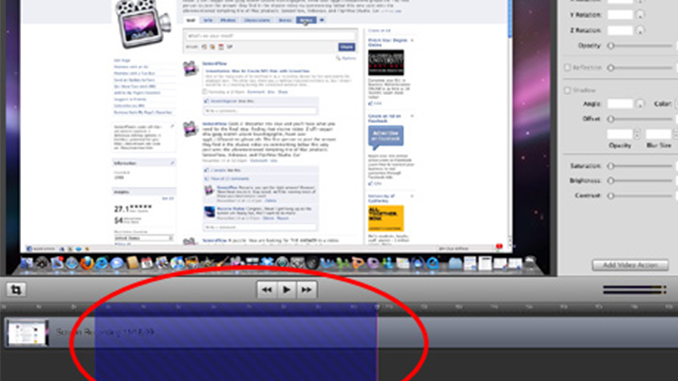
Another new feature of ScreenFlow 2.0 is the ability to export a selected range of your entire screencast, not the entire presentation. And, it’s easy to do!
Step one: Select a range in your ScreenFlow timeline. You can do this either by holding down “Shift” in the timeline as you click and drag the scrubber, or you can add a Mark In Point (keyboard shortcut “i”) and a Mark Out Point (keyboard shortcut “o”).

Step 2: Once you have your range selected, simply go up to File menu, and you’ll see your “Export” option has changed to “Export Selected Range”

Then you’ll export only the range you selected. This can come in handy in several ways. One use for this would be if you wanted to insert a consistent intro into all your screencasts. To do this, simply export just your intro segment as a QuickTime movie, then when you start a new ScreenFlow project, add this QuickTime intro into your media bin and insert it in front of the content of your screencast.
There you have it – if you have a way you like to use this feature, let us all know by commenting below.
Wow, that’s a very nice feature and I didn’t know it was possible. Thanks for the tip! This will be very useful.
Thanks for the positive feedback, Mathew. Another way to use this might be if you have a very long presentation (maybe a lecture or educational seminar) you could add chapter markers and chapter headers, then just export each chapter as a separate movie.
There are a lot of “minor” features that are really useful with this release. I’m working my way through a lot of them on this blog. But if you have anything that you’ve come across that you think might be helpful to share with everyone, let me know. I’d be happy to do a “how-to” on it.
Lynn: Now that you mention it . . . I use chapter markers a LOT. Is there a very quick way to select the material between two markers (without shift-and-select)?
Good question, Mathew
Unfortunately, there is not currently an easier way. (But this would be a great addition to our Feature request page!)
Excellent tip and one which I wasn’t actually aware of at all. It will be very handy for exactly what you described a constant screencast opener.
Thanks : )
This feature comes in handy as you develop a complex project and solicit review of various segments from people expert in that particular aspect of the project.
Frank,
Yes, great point. It can also save time if you’re not sure what export settings you want to use. Export just a section of your screencast using the settings you want, and check the output before you export the entire screencast.
Thanks for the input
Hi – that’s an excellent tip.
Great if you are making up several different edits using the same material.
Screenflow is very impressive – at the moment I am using to edit most of my videos, it’s so quick.
Jonathan