
“Snap to guides”, or “Snapping” is a useful feature when you’re trying to align or position items in your Preview Window or on your Timeline.
When Snapping is on, the mouse will snap to various guidelines. For example, in the Preview Area, the mouse will snap your objects to the center and edges of your canvas. It will also snap to other objects, if you have any on your canvas. In the Timeline, the mouse will snap to the beginnings and endings of actions and clips.
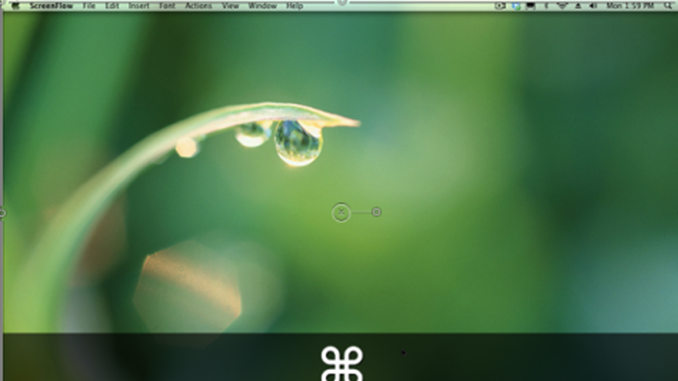
The keyboard shortcut to toggle Snapping on and off is ‘Ctrl-N‘. However, what if you just want to quickly turn Snapping off as you’re moving something? Easy: Just hold the Command key down while you move or align your item, and Snapping will be temporarily disabled. As soon as you release the Command key, Snapping will become enabled again.

Nice! Great tip as I didn’t already know this. Thanks.
This is fantastic! I was using the ctrl+n and would oftentimes forget if I turned it back on or not.