
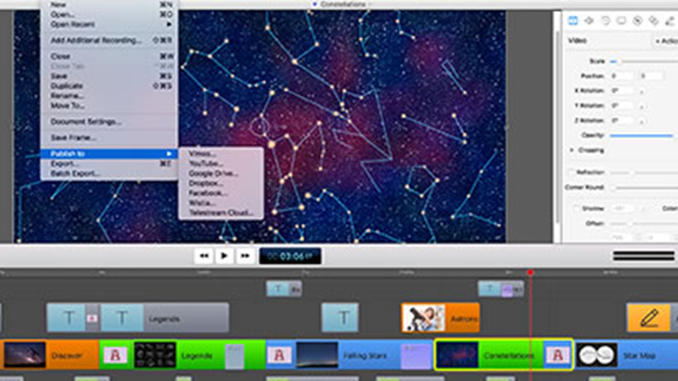
There are a lot of nice effects that you can import into ScreenFlow from other applications such as Adobe After Effects or iMovie. But what if you don’t know those programs? How do you create some cool effects using only ScreenFlow?
Here’s an example of how to create a text effect I call “falling text” in three easy steps:
- Type in your text (or letter) using the Text tool
- Add video actions to that text to create movement
- Copy text and repeat
Take a look at this 3 minute instructional video.
That’s a cool little effect.
@ Clifford. Why thank you! It’s best for headlines or short lines of text, but can make a nice intro, or text treatment for your URL, for example.
Screenflow Text Contest.
httpv://www.youtube.com/watch?v=bBW5fMP6buU
Used music, hope that’s ok. In fact, some of the text “bounces” with music notes. Did some layering as well. It’s kind of short, but I didn’t want to spend too much time doing this. Sort of a learning exercise I suppose. Until I saw your video, I didn’t realize you could add a VIDEO effect to text, so thanks for pointing that out.
Marty
Wow @turtleknife, this is great. I love the effect of the letters, as you say, “bouncing” to the beat at the end. Can you tell us how you created this effect? Did you layer a letter (e.g. the letter ‘b’) on top of the ‘b’ in the word ‘beautiful’ and just apply a bold or enlarging action to it?
Also, when the phrase ‘my wife is’ was “floating” down, the phrase was ghosted and moving in the background at several different sizes– did use layers for that? Meaning: does your timeline have several versions of that phrase at different colors and sizes moving all at the same time? Or were you able to do that with transitions?
Also, just curious- did you create the music too? (Oh, and consider giving this to your wife as a holiday gift…trust me, she’d love it!)
thanks!
Thanks Lynn. Learned a lot doing this, but I am sure someone who has more time to play around with the effects can create even more.
So once I did the first “my wife is” effect I would copy that layer and remove the video actions in it. Then I would replace those video actions with something similar or with a different speed and transparency. That part was easy.
The musical notes involve a layer for each letter. I zoomed to the highest rez so I can align each letter just slightly after the last, each of them having a fade-in transition. Then I went to the audio timeline to see where the piano beats were and aligned the scrubber to them. At that point I just picked a letter and added a video action expanding the size, and spliced it down to a fraction of a second. The louder the note, the higher I would make the initial size jump, like the last note in the “B” for for example. Then right beside that video action I added another one bringing it back down to 100% size, but a bit slower (maybe 1/2 sec) for holding the note effect. This sounds tedious, but after the 3rd or 4th one, I knocked them down rather quickly.
The last “My Wife Is” I simply copy and pasted again with varying degrees of transparency and shape shifting. The cool thing about video actions is that you can always bring them back to original using the radio button adjustments. This way you know they are all going to be the same. In this case I also mad them all end their glide at the exact same location. As you may have noticed it wasn’t as smooth as I was shooting for, but still cool anyway.
Finally, yes. I made the music in GarageBand. There are 3 layers here of a piano melody, and 2 different congo drums. Will email to my wife – good idea.
Thanks for the tutorial 🙂 Again, nice work.
As a result of this exercise I came up with 2 feature requests – be careful what you wish for Lynn!
1 – When doing intricate effects like this I could have used a grid across the video for guiding certain elements.
2 – Also, if I could see a transparent or ghosted version of the twine of another particular track, while working on a different one it would make positioning really easy. As it is now, you sort of have to guess, then watch and adjust.
Just love screenflow, really. Thanks again.
Thanks @Turtleknife.
Agreed, these are good requests. I will add them to the Feature Requests page for you
httpv://www.youtube.com/watch?v=2xE_YFRUps0
I thought I would add this recent video of mine as well. I have a text effect at the beginning where the “TILT” swings, collapses, and clunks. I just wanted to say that the text capabilities for screenflow are brilliant compared to iMovie, making this quite a step up for mac users who do not have FCP.
Also one of things I like about the text flexibility (that I utilized in my recent poker series) was that sometimes during the script recording I would forget to say something important. Well with the video and text actions, I can recover easily just by sliding the screen to an angle and TEXT up what I forgot to say verbally. It actually lends itself to being more important and more visually interesting >> professional even!
@turtleknife Another great effect. I love the sound effect that you put with the “tilt”. (Your chances are looking good for winning the prize at this point) People have until 4PM Pacific today to get their entries in!
Congratulations @Turtleknife. You’re the winner of our prize: a 20% discount off any Telestream desktop product! Perhaps you scared other prospective entrants off with your spectacular text effects video. And if the first one wasn’t enough, you hit us with a second great one!
Thanks for participating. I will contact you via email with your discount information.
Lynn
Thank you for sharing this particular post. I love your web blog and visit it often, continue the good work.