
If you’ve ever created a long screencast, you’ll immediately understand the benefits of using Markers. But even if your longest screencasts are less than a few minutes, you too can experience the joy of Markers also – don’t fret! Markers are essentially “bookmarks” that allow you to define a point in your timeline, and can be used for a variety of reasons.
Add a Marker
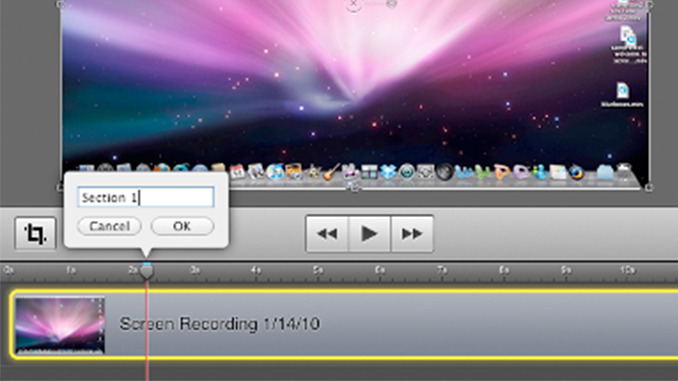
Adding a Marker to your timeline is easy. From the top menu bar select Edit>Markers>Add, or hit the backquote key (`), and a marker will appear at the position of your scrubber.

Name your Marker
When you add a Marker, a text box will pop up allowing you to name the Marker. You can choose to name it, or not. If you choose to name it, you then have the option of exporting your Markers into your final movie (more on that later).

Why use Markers?
There are a variety of reasons Markers can be helpful:
Notation:
I often use Markers to note an area to which I want to go back to do further editing. As I play back my not-quite-finished screencast, if I see a point that needs tightening up, or adjustment to a transition, I’ll quickly hit the backquote key (`), to insert a Marker at that point, which will remind me to go back and make adjustments.
Navigation:
One nice thing about Markers is that you can easily jump from Marker to Marker by hitting Shift-Up Arrow, or Shift-Down Arrow. So, especially if you’re working on a long screencast, you can insert Markers at significant points within the timeline to help you easily navigate to those areas.
Chapter Markers:
Perhaps the most widespread use of Markers is for designating chapters or sections within your screencast, giving your viewer information as well as an additional way to navigate through your movie. Below is a screenshot of a finished QuickTime Movie that I exported with Chapter Markers. My Markers are creatively named “Section 1”, “Section 2”, and “Section 3”. You can see that in my QuickTime Player, the name of the Chapter I’m on (in this case, Section 2) is displayed in the lower right corner. If I click on that Chapter name, a pop-up box appears displaying all of the Chapters in that movie. I can then select the Chapter I want to view and I will jump to that section of the movie.

Exporting Chapter Markers
If you have named your Markers in your timeline, then when you export to a QuickTime movie, you have the option of adding a Chapter Track to the exported movie. Just make sure the “Add Chapter Track from Markers” is checked on your main export window. If you’ve chosen not to name your Markers then this option will not be available.

Do you have a way you that you use Markers that’s different from what’s described above? If so, please share!
Thanks. I have been aware of markers but never made use of them. Most of my videos are 10 minutes or less, so not sure it would be that big of a deal to have chapters, but it is certainly something I will consider. Thanks for getting me thinking. 🙂
You’re welcome, Michael. It’s one of those features that people have seen, but may not know what it’s for. You never know when it might come in handy. Thanks for visiting!
Very interesting, thank you 🙂
Thanks for the great tip. I use this feature in GarageBand all of the time when creating enhanced podcasts. This will be helpful when a screencast contains discrete sections that the viewer might like to repeat or navigate to.
I use Markers to note significant points in a recording. I use Screenflow for recording meetings and interviewing people – sometimes the recordings are 90+ minutes.
I like to mark important comments or questions during the interview so I can more easily share these points to project team members.
Markers let my team jump to a specific point in the recording so they do not need to listen to the entire recording to locate information.
I really, really wish markers could be added real-time during recording so I did not have to go back and listen to the entire recording to add them.
I submitted this as a feature request here:
http://bit.ly/aGc6VX
I absolutely wish this too! I have to read entire books. Markers while recording would be a gift from above. Boring listening to the whole book again and again. :/
Really glad this was added! A long time ago.
I am looking to create a presentation on a Mac using Keynote and Screenflow. I will be recording an initial ScreenFlow demo, exporting it and then inserting it as a video in the Keynote presentation. Since the presentations will be using a Wintel laptop, I wanted record the whole Keynote presentation (with embedded video) using ScreenFlow so that it would playback in QuickTime Player on the Wintel laptop.
My question was how to control the presentation like it was a slideshow instead of a movie. I need to be able to pause/play with a projector remote. I am going to presume that these ‘markers’ would allow me to do this? I also presume that I do NOT need chapter markers, because I am not looking to display the marker points, I just want to pause/play to them with the remote.
Does this sound like it will work?
HI AjEG,
Wow! Interesting workflow. So you have:
1) a Keynote with an embedded ScreenFlow video
2) You’ll play that Keynote slideshow, & record it with ScreenFlow
3) You end up with a Quicktime movie of your presentation.
So, when you asked, “My question was how to control the presentation like it was a slideshow instead of a movie.” Are you talking about your initial Keynote presentation? Or the final QuickTime movie?
As far as I know, if you are playing back a movie in the QuickTime player, you can see what chapter you’re in as it plays. You can also select a chapter and ‘jump’ to the beginning of that chapter. However, I don’t believe there’s a way to make the movie stop after each chapter.
Does that answer your question?
No, markers would not do this, but they could aid. Any remote clicker should allow you to stop/resume/ff or rewind. Chapters could help insofar that if you need to jump back to repeat a point that you made, or jump forward, you could do so quickly.
Are markers available on video players other than QuickTime? We have a video hosting service which optimizes the video and streams it.
@khweir, Flash can support Cue Points although you’d have to build that interface and make the cue points in Adobe Flash. ScreenFlow’s H.264 .mov files work in Adobe’s Flash building utilities with at least CS4 and CS4.
Ah, what about importing the movie to iDVD, then you can make a full featured presentation that will play with the dvd player on the wintel laptop.
This will give you the control you need just like chapters on a DVD. You can make the DVD return to the menu of “chapters” after playing one, or loop it or something like that but it would help with the remote. If you don’t have a dvd rom on that wintel laptop, get VLC player installed and simply play the DVD file without burning it.
Do I even make any sense? Just some thoughts for you I guess. If you have questions about this, just comment back or email me (contact info @ my website)
Oh yeah but I forgot what I came here for. I was looking for more information on the whole marker thing. These are great as the blogpost talks about, but is there something like this that would translate to playback on the web?
I’d like to make markers on my videos, but these are just streamed over the web. I use a player plugin to display them on a website, but I’d like to add some sort of marker like the one you talk about here. Youtube has those markers you can add that visually show something in the timeline… I guess I’m looking for something like that for my own videos. TIA & sorry for the long comment.
I would really like to have an exported list of the markers I create (for easily putting a table of contents on my website). Is there any way to export the markers?
Thanks,
Austin
I have requested this feature a number of times Austin, it would save a lot of time.
Currently here is my workaround:
1. Create markers while recording (with my keyboard shortcut) or while editing
2. Go to Window > Markers
3. 2x click and rename every marker MAKING SURE TO INCLUDE the time the marker was inserted (e.g., 03:22 Name of My Marker Here)
4. Rename the entire Marker list
5. Go back to top of list, 2x click first marker, copy, paste into a text file
6. Repeat for all of the other Markers
This is super tedious, I REALLY with I could export the markers as a text file and INCLUDE THE TIME for each marker.
Vimeo and YouTube automatically make times, such as 03:22, inserted into the video description jump links. This means that you can put a ToC below the video and let people jump around to a section of the video, for example:
01:14 How to Build a Planter Box
04:21 Getting the Best Soil
07:32 Protecting the Garden
A person watching the video can click on any of the times to fast forward or rewind the video to that point.
Tip: Using Alfred to Merge (via CMD (⌘) + C C) copied items makes this easier, but still a bigger pain that it should be.
I use Subler for this. Details: http://jb.rainsberger.ca/permalink/extracting-chapter-markers-quickly-from-screenflow
I agree with Oscar and Austin — markers are nice, but ultimately, I wish Screenflow would let you use those markers on a Flash video for the web.
I know Camtasia for Mac has this feature already:
http://www.techsmith.com/camtasia/whats-new/mac/
Using markers on the first run thru to spot cuts. Then after cuts, it is time to consolidate the clips and add B roll.. however, I cannot find any way of moving the clips and the markers at the same time. It seems that all markers need to be manually reset or cleared and done over. One quick example is the first 2 minutes of a recording could be the start..restart..restart.. then good content. Now killing the content and sliding the clips left does not move any markers.
Creating a group moves all clips, but not markers included by them
Is there a feature the cuts a segment out of the timeline?
Thanks…Version 3.0.8 (18099)
HI Jim,
Yes, you could try a few things:
One option is to set in/out points to select the portion of your clip you want to delete. (One thing to note here is that this will select everything on your timeline during that time segment — so it’s best to use this if you just have one layer with your screencast and/or audio). Then hit Delete. This will delete the selected range on your timeline. Then click and drag the red handle at the bottom of your playhead scrubber to the left to close the gap in your timeline. This will move all your media (including the markers) to the left.
Another option is to use Ripple Delete. To do this, again select your in/out points, and then select Edit>Ripple Delete. This deletes everything within your selected range and simultaneously moves everything to the left. (including the Markers)
The only drawback to these solutions could be that the action of deleting does not remove any markers. So your timeline will continue to show all your markers, even though you’ve removed the content it was supposed to point you to. In this case, you simply need to right-click on the marker and select Delete Marker .
Hope that helps.
I would like to break my 12 minute video down into chapters as well. I know how to do the markers, but if it is streamed online via Media Core, not played back in Quicktime, does that mean that the user cannot navigate through the markers like chapters or a table of contents?
HI Owen,
I’m not really familiar with Media Core – but it looks like an online player. Does it support chapter markers? If so, if you deliver a file with Chapter Markers from ScreenFlow, then when you upload it to Media Core, Media Core should recognize those markers and keep them in place.
Publishing a 12 minute video but due to the upload size requirements I need to break up the video… I did this via chapters so the question is how do i export each chapter as a separate quick time video?
Hi!
It would be great to set _differnt_ Types of marker via Keyboard _during_ the recording.
Especially in COVID-19 times, when recoring screencasts in the homeoffice, it would be great to mark start and end of disturbing noice, cought, repetitions, error with different colored marks. That would make the editing *much* easier.
Thanks for the feature idea! We’ll take that into consideration